Let's talk





Intralogistics · Microsoft 365
For a German intralogistics and warehouse-automation company we designed a project hub in Microsoft 365: status, team, milestones, reports and documents of every customer project in one place. Built from native SharePoint and Teams components, so the company runs and extends the hub itself.
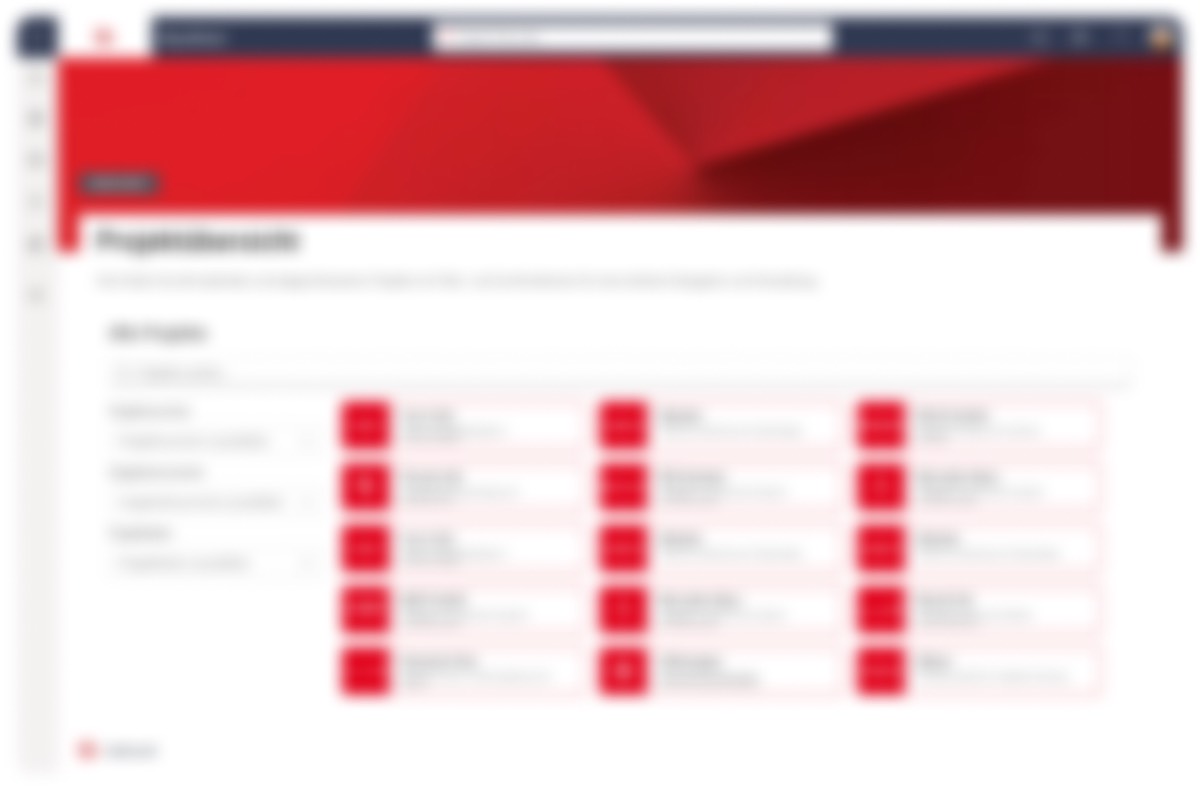
A German intralogistics and warehouse-automation company runs large customer installation projects in parallel. Status, team, milestones, reports and documents of each project lived in different tools and folders; there was no shared, permission-controlled view of a project. We designed a project hub in Microsoft 365: a project overview and a project view in SharePoint, project channels and a protected library for sensitive data in Teams, embedded Power BI reports from SAP. All of it from native components, without custom development, so the client's team maintains the hub itself. The result: one place per project instead of a search across several systems.
This matters for project-driven engineering companies that already have Microsoft 365 in house and do not want to introduce yet another project management tool. The case shows which decisions in information architecture, permissions and handoff determine whether such a hub is still maintained after go-live or becomes the next forgotten SharePoint page.
What was the starting point? A company that delivers projects, not products, and whose project information was spread across tools and folders.
A company that automates warehouses does not ship a finished product; it delivers a project. Conveyor technology, racking, controls and software are planned, installed and commissioned at the customer's site. Every customer project runs for months, has its own milestones, its own project team across several disciplines and its own status in SAP. The company in this case runs many such large, complex installation projects in parallel.
The people who would use the hub are first of all project managers and the members of the project teams. Their everyday questions are simple: Where does project X stand? Who is on it, and who is responsible for what? Which milestone is next? Where is the current report, and where is the approved document? Add to that managers who want to know, across all projects, which ones need attention.
Before the project, the answers to these questions were found in different places. Status, team, milestones, reports and documents lived in different tools and folder structures. There was no single, permission-controlled view in which a project was legible at a glance. The consequence was a daily series of media breaks: whoever wanted to understand a project assembled the information from several sources, and whoever maintained it did so in more than one place.
The constraint that shaped everything: the hub had to be built inside Microsoft 365, from native SharePoint components and Teams. There was no free design canvas and no custom app. So the real task was not to draw a nice concept, but to design, within an existing component system, a clear, quickly scannable interface that the client's engineering team could actually build and then maintain on its own.
More than convenience was at stake. A company that earns its money with projects needs, per project, a reliable answer to the question of where things stand. If that answer lives in five systems, it costs time in every meeting, and sensitive data drifts into emails and shared folders because there is no defined place for it.
What was the problem? Project information was scattered, navigation followed document libraries instead of projects, and the platform allowed no free design.
Status, team, milestones, reports and documents lived in different places. Whoever wanted to understand a project opened several tools and folders and assembled the picture by hand. Each source was maintained separately, with the risk of duplicate data entry and contradicting states.
People in the company think in projects and customers, not in document libraries. They know the project number, the offer number and the project lead. The existing filing was structured by technology and folders, so every search demanded a translation.
The hub had to be built with SharePoint and Microsoft 365 components. A custom interface or app was not an option, because the client's engineering team was to build the result with standard tooling and maintain it long term. The design had to become clear and scannable within the limits of the platform.
Some project data must not be visible to everyone. Without a defined, permission-controlled place, that data ends up wherever is convenient at the time. The hub needed its own layer for sensitive data, without introducing a second system for it.
The question "Who is on this project, and whom do I call?" came up constantly. A static org chart as an image does not answer it. It had to be actionable: a person's role, team membership and contact in the flow of work, without leaving the page.
How did we go about it? From research with the Product Owner through the information architecture to a handoff that engineering could build inside Microsoft 365. We recorded every decision as problem, decision and rationale.
First we understood how projects actually run in the company and where project managers look for information today. Working closely with the Product Owner, we collected the everyday questions the hub must answer and the identifiers people use to name a project: project number, offer number, project lead. It also became clear which data is sensitive. The result was the list of facets that must sit in one place per project: news, milestones, org chart, reports, documents.
The structure of the hub follows the way the company works, not the technology: a project overview with all customer projects as cards, beneath it the project view for a single project, beneath that its facets: project org chart, project reports, project progress and project documents. The overview can be filtered and searched by the real identifiers, cards are grouped into current and completed projects, and the status is visible on the card before anyone opens anything. In parallel we defined a Teams layer: project channels for collaboration and a protected library for sensitive data.
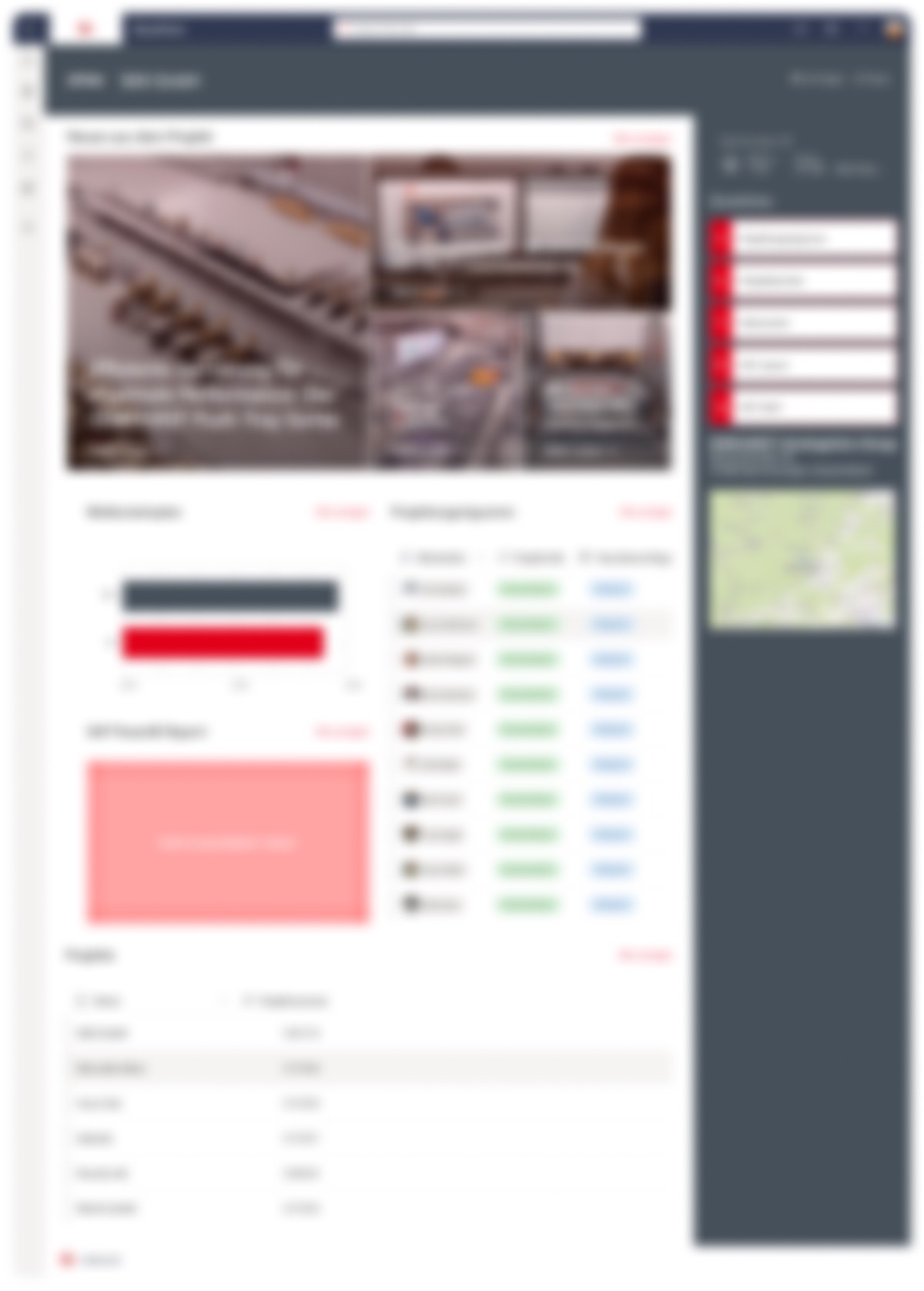
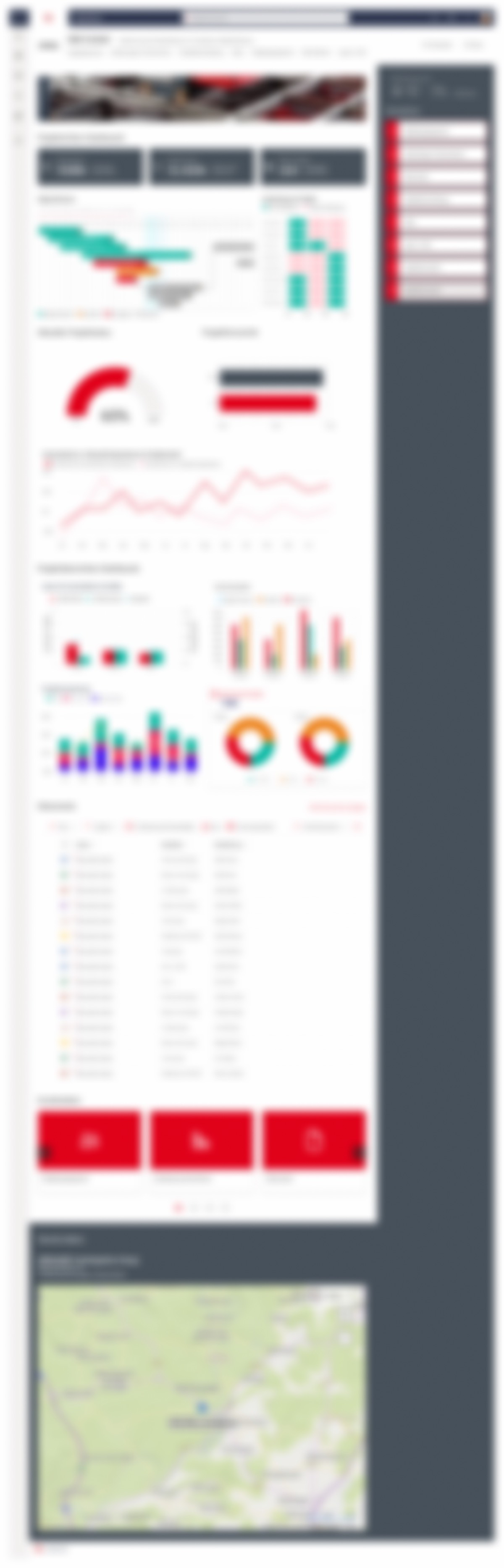
Instead of a custom interface we assembled the project view from the web parts SharePoint ships with: project news at the top, meaning what has changed since the last visit; below it the milestone plan; at the side the project org chart; then the embedded Power BI report with data from SAP; at the bottom documents, quick links, location and 3D building view. The design work consisted of choosing order, weight and density so that a project manager scans the page in seconds, and of using only components that engineering can configure without special development.
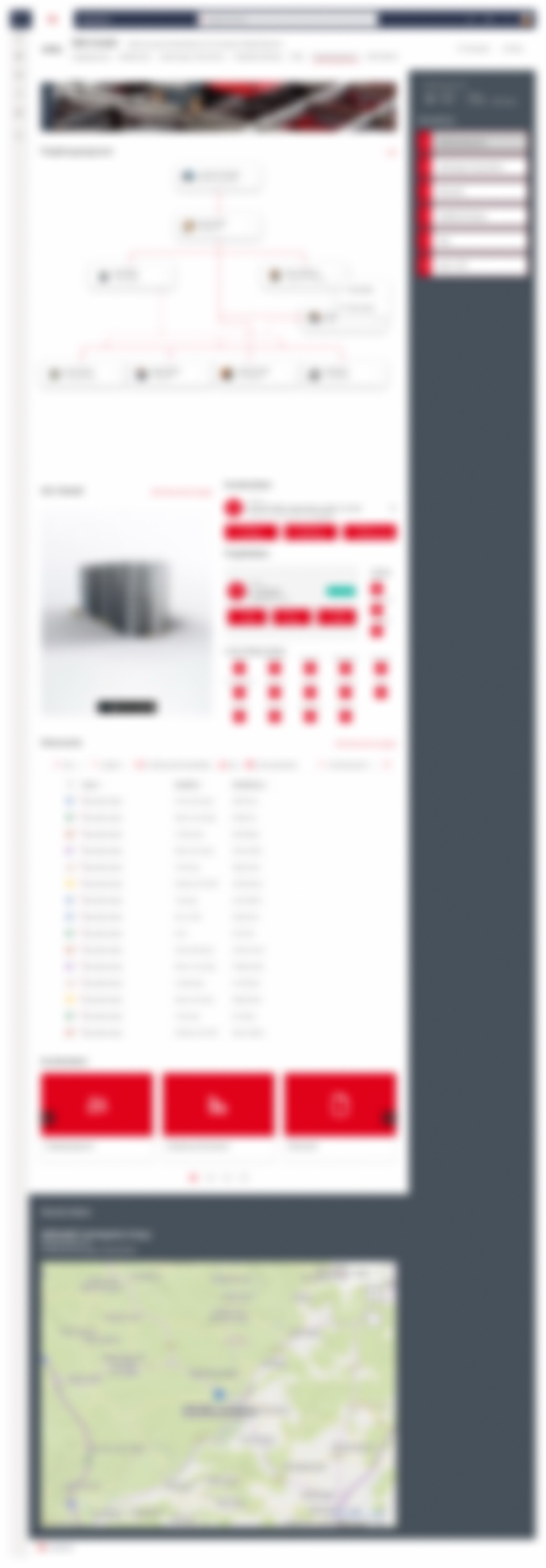
We laid out the project org chart in two representations: as a list with name, role and contact directly in the project view, and as an interactive org chart. Every node is a real team member with role and team membership. A right-click opens a context menu with quick actions, a click opens a person modal with role, membership and contact, without a page change. This turns the org chart into a tool for the question "Whom do I talk to?" instead of an image for presentations.
Collaboration happens where the team already is: in Teams, with one channel per project for posts and coordination. The milestone plan from the project view also appears in Teams, as the same source on a second surface, not as a copy, so that no duplicate data entry arises. For sensitive project data we created a separate library called "Sensitive data" with its own permissions. Who sees what is thereby part of the hub's structure, not of informal agreements, and needs no second system.
Reports from SAP were not to live in a separate reporting tool. We embedded a project's Power BI report directly into the project view, added a project progress page that shows the state against the milestone plan, and aggregated dashboards at portfolio level, with which managers see which projects need attention before they drill into a single one.
Finally we handed over the concept so that the client's engineering team could implement it inside Microsoft 365: the structure of sites and channels, the configuration of the components, the permission model for the protected library and the rationale behind every decision. Enter only what is documented.]]
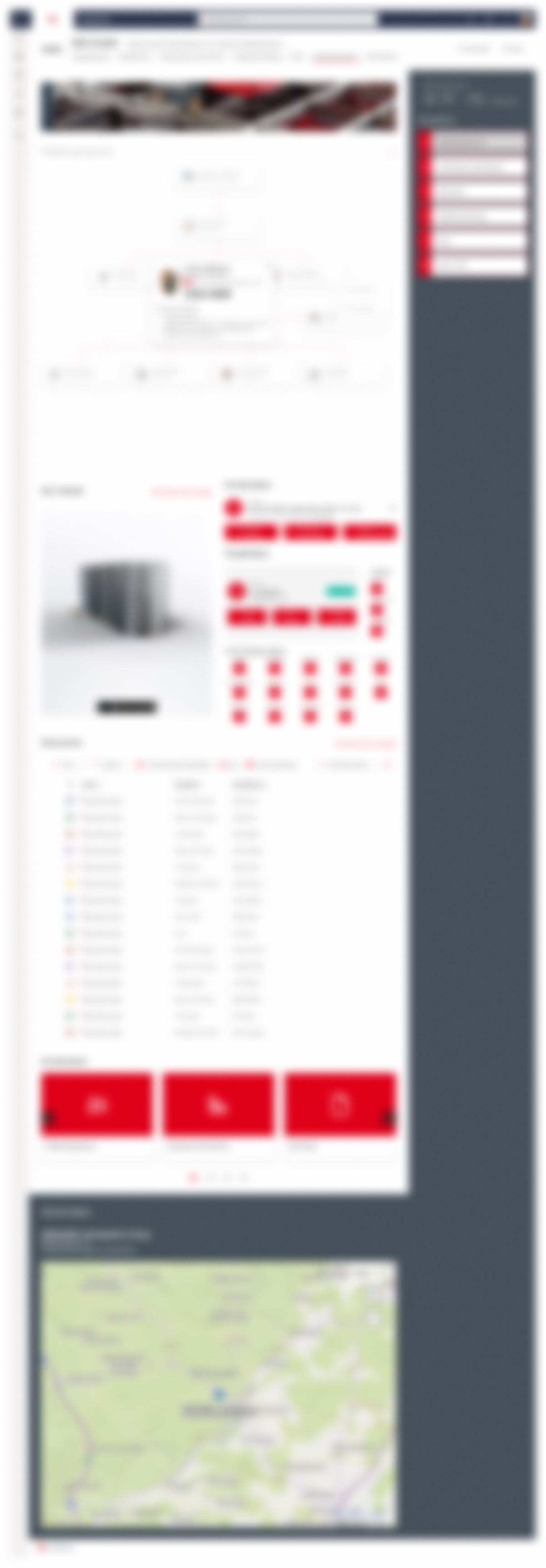
More screens from the hub, blurred for confidentiality: logos, project numbers and sensitive-data markings are not legible.
What is the result? One place per customer project across SharePoint and Teams, built entirely from native Microsoft 365 components so that the client's team owns and develops it further. We do not have measured usage figures from this project, so we quote none.
| Aspect | Before | After |
|---|---|---|
| Checking project status | Open several tools and folders, assemble the picture by hand | Open the project view: news, milestones, team, BI and documents on one page |
| Finding a project | Navigate folder structures organised by technology | Filter the overview by project number, offer number or project lead; status on the card |
| Team and contacts | Ask around or open a static org chart | Org chart with context menu and person modal: role, membership, contact in one click |
| Milestones | Maintained in different places, states can diverge | One milestone plan, visible in SharePoint and in Teams |
| Reports from SAP | In a separate reporting tool, context switch required | Power BI report embedded in the project view, portfolio dashboards above it |
| Sensitive project data | No defined place; passed on by email or shared folder | Protected "Sensitive data" library in Teams with its own permissions |
Three Microsoft 365 surfaces, SharePoint as the portal, Teams for collaboration and governance, Power BI for the reports from SAP, converge per project. Nobody leaves the tools they already work in, and nobody has to gather the information about a project by hand any more.
Milestone plan, reports and documents appear where they are needed, in the project view and in Teams, without being maintained in two places. That is the difference between a portal page and a hub: the media breaks disappear, not just the links.
Who sees which project data is governed by the protected library in Teams and its permissions. The company needs neither a second system nor an informal rule that every new project member has to learn first.
Because the hub consists of native components, the client's engineering team can create new projects, adjust components and extend the hub without depending on an agency or a custom codebase. That was precisely the condition of the project.
SharePoint invites you to think in sites and libraries. People in the company think in projects, customers and project numbers. The most important decision was to build the information architecture consistently by project and customer and to use the real identifiers as filters; components, permissions and Teams channels hang off that structure. Start with the technology and you build a filing system; start with the project manager's questions and you build a hub.
It is tempting to work around SharePoint's limits with custom development. The price shows after go-live: every change then needs developers, and the hub goes stale as soon as nobody is responsible any more. Designing within the native components was harder, but it produced a system the client runs itself. For implementation projects in Microsoft 365 we consider that the rule.
A rule like "please don't put sensitive data in the project folder" lasts exactly until the next project. A protected library with its own permissions lasts, because it makes the right way the easiest one. In every project of this kind we would first clarify which data needs a defined, protected place, and create that place before the first page is designed.
In this project we did not instrument usage. Whether project managers actually land in the hub first, and how long they need to find a key piece of information, we therefore cannot say with confidence. Next time we would define these two questions before the rollout and measure them after go-live, because without those numbers every success remains a claim.
A hub where every new project creates design effort will not be maintained. The project view belongs in a template, so that a new project comes into being without design work. For the rollout, what has proven itself in our projects is to name one key user per area who uses the hub first and answers colleagues' questions, and to plan the first weeks after go-live as hypercare, during which structure and permissions are still adjusted.
We design project hubs and specialist portals inside the platform you already have, with a structure your teams maintain themselves. Tell us in an intro call how your projects run today.
Book an intro call